| LEARN to CODE | ||||
|---|---|---|---|---|
10 hours of CODING
Choose an online programming site
Recommendations
|
||||
| 1. https://www.khanacademy.org Intro to JS: Drawing & Animation! I quite like this one. Work until you get past "Text and Strings". |
||||
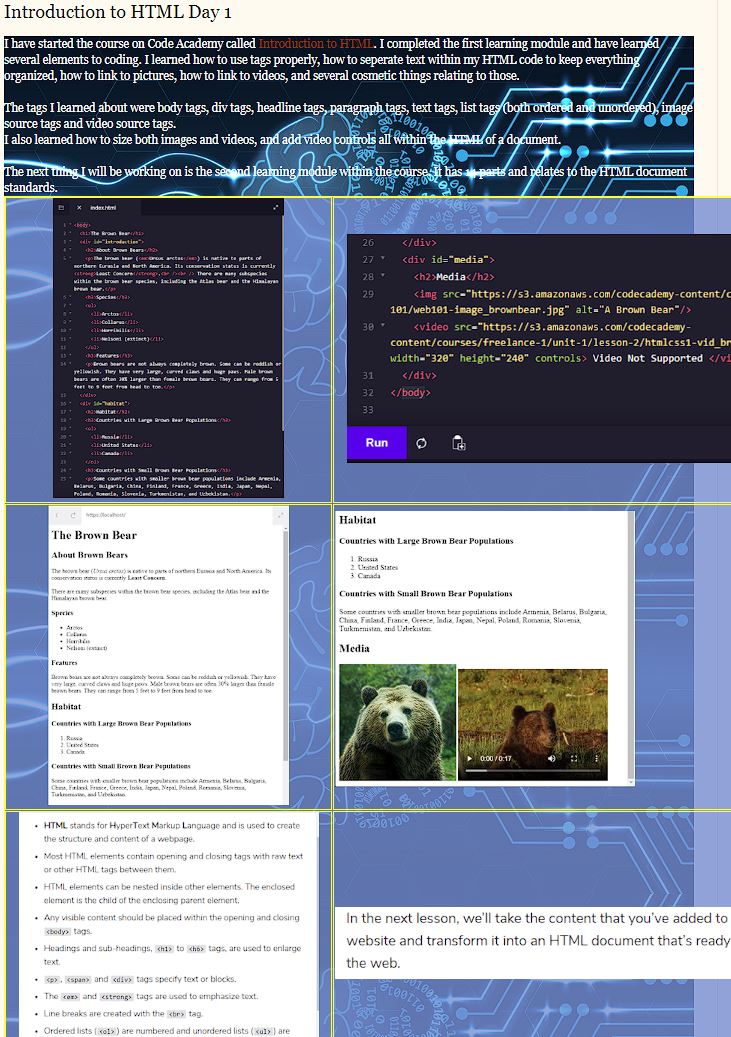
| 2. https://www.codecademy.com Introduction to HTML Some of this code can be used on your blog! |
||||
| 3. http://drawingincode.com/ The Basic Cityscape Flappy Square looks a lot like Actionscript used by Adobe Animate- I like it.  |
||||
How will you be marked?
Each hour - for 10 hours- you will make a BLOG post of what you did that hour. This will include screen shots. You will also write about what you learnt that hour. Give examples. e.g. How to do something, a new piece of code, how difficult something was. Then you will indicate what you will be doing the next hour. Add a link to the exercise. CODE for about 45 minutes then finish up by posting for the last 15 minutes. It is best to code and blog at the same time. This way you can capture images, gifs and thoughts as you work.Use these titles: What I DID this hour What specific things I LEARNT What I will do next hour ...each hour is a separate post... example - html
|
||||
| opaque background in the table! uses RGB colors the .8 is the opaqueness value between 0 and 1-where 0 is invisible and 1 is a solid color <table border="1" bordercolor="yellow" style="background-color: rgba(111, 144, 211, .8);" > |
||||
| background-image - get link to image off the internet <div style="background-image: url('https://images.pexels.com/photos/951240/pexels-photo-951240.jpeg');"> </div> |
Monday, April 13, 2020
10 hours of CODE


Thursday, April 9, 2020

Tuesday, April 7, 2020
Tuesday - still waiting
Tuesday - still waiting

As it stands
6 people have joined Microsoft Team for Block B and
4 for Block D
Please check your email and take a moment to join. Should you not join then at least look here for instructions and I will look to your blog for results...just like before.
On Monday, we will most likely start coding. I would like to use TEAMS for any sort of communication you may require regarding the assignments.
ZOOM is not FOIPPA compliant so you are not allowed to use it.
Monday, April 6, 2020
NOT YET
NOT YET
As it stands we are not authorized to hand out work.
So, for now, try logging onto your Office365 account using your langleyschools.ca email address.
from there choose TEAMS
I will send out an email with the code required to get into the correct 'TEAM'.
Once everyone is there I am thinking of doing something graphical.
I realized no one has Photoshop so it may be with an online drawing tool...there are many.
Sunday, March 29, 2020
Pandemic Course - this course ... online

EMAIL me at acssinfotech9@gmail.com
if you have read this message
In the subject line write your - name - block - course
Answer two questions:
1. Are you well enough to do this course?
2. Do you have the technology to do this course online?

At this point, you should be wrapping up the Minecraft assignment.
1. a slideshow showing the outside construction of your project
2. a slideshow showing the inside construction of your project
3. a 20 second video showing the whole project.
I am going to throw out the animated gif of the whole group contribution.
The instructions for the slideshow and video are at the bottom of the previous post.
If you do NOT have Windows Movie Maker here is a link to the file.
--> Choose the programs you want to install
You only need "Photo Gallery and Movie Maker"

I will give you until the end of the week - this is a lot of time -
I also see some students are already done.
If so go to your Microsoft 365 and find TEAMS - we will attempt to communicate using it.
Next Monday we will begin the CODE section of the course.
Monday, March 2, 2020
Minecraft - slideshows - video - Animate GIF
Collaboration in Minecraft
This is a collaborative project
you are required to collaborate.
Colaborate
using
Minecraft
- Take your OWN screenshots (F1 hides the HUD)
WINDOW KEY - ALT - PRINTSCREEN
- create and post your OWN slideshows with captions
- no dark or rainy screen shots
- no screenshots without significant changes
- Minimum of 2 slideshows each with a minimum of 20 screenshots - each with a caption
- slide show 1 - outside construction (max 45)
- slide show 2 - inside construction (max 45)
- walk-through video - 20 seconds in length (+-1)...with title, captions and your name
- 100 slide ANIMATED GIF - equal contribution from all members of the group. (Title, captions, your NAMES)
Choose one of:
The Antilia House
Marina Bay Sands
Tropical Island
Marina Bay Sands
Tropical Island
What to do with your screenshots
 POWERPOINT suggestion
-organized your images into separate folders and rename/renumber them
Go to Desktop PowerPoint – choose Insert-Photo Album
and choose the folder - then all the images – 1 per page – fit to slide
and make changes as necessary -
VERY IMPORTANT
add a caption per slide (insert wordart)
make them large and readable
(Describe what is new about each slide)
How to Embed slide shows on your blog using Google Slides
go to Google Slides
https://docs.google.com/presentation/u/0/
or open CHROME type in SLIDE.NEW
- choose File- import slides - find the powerpoint file you saved.
Choose file - Publish to the Web
Choose the EMBED tab
Slide size : small Auto-advance Slides: every 2 seconds
CHECK BOX both start and restart
copy the code - paste into HTML section of blog post
WINDOWS 10 has a built in video capture app
WINDOW KEY - G to open the game bar
Start recording - then stop recording - find the file in the VIDEO - CAPTURES folder
if the file is TOO large - load into Movie Maker then save movie for email
or open CHROME type in SLIDE.NEW
- choose File- import slides - find the powerpoint file you saved.
Choose file - Publish to the Web
Choose the EMBED tab
Slide size : small Auto-advance Slides: every 2 seconds
CHECK BOX both start and restart
copy the code - paste into HTML section of blog post
Video WALK through
use a video to show the whole outside of your project from all angles and insides as well - keep it at 20 secondsWINDOWS 10 has a built in video capture app
WINDOW KEY - G to open the game bar
Start recording - then stop recording - find the file in the VIDEO - CAPTURES folder
if the file is TOO large - load into Movie Maker then save movie for email
-Edit the video - add a title - add captions - add your name
HELPFUL IDEAS
Stop the weather and stop the day-night cycle
/gamerule doDaylightCycle false also /time set day
/gamerule doWeatherCycle false also /toggledownfall
/gamerule doDaylightCycle false also /time set day
/gamerule doWeatherCycle false also /toggledownfall
.
Tuesday, February 25, 2020
PHOTOSHOP - Morphed and textured - extension project
PHOTOSHOP - Morphed and textured
- extension project -
- extension project -
Pick Real world items:
Change all the parts around - Morphing
|
|||||
|---|---|---|---|---|---|
a vegetable
ex: gourd
|
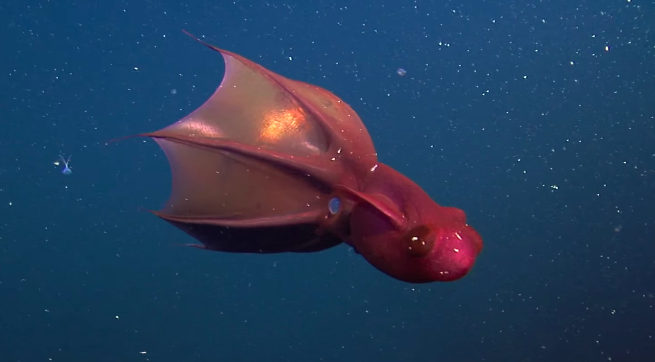
an underwater creature ex: vampire squid |
a south American animal
ex: llama
|
|||
 |
 |
 |
|||
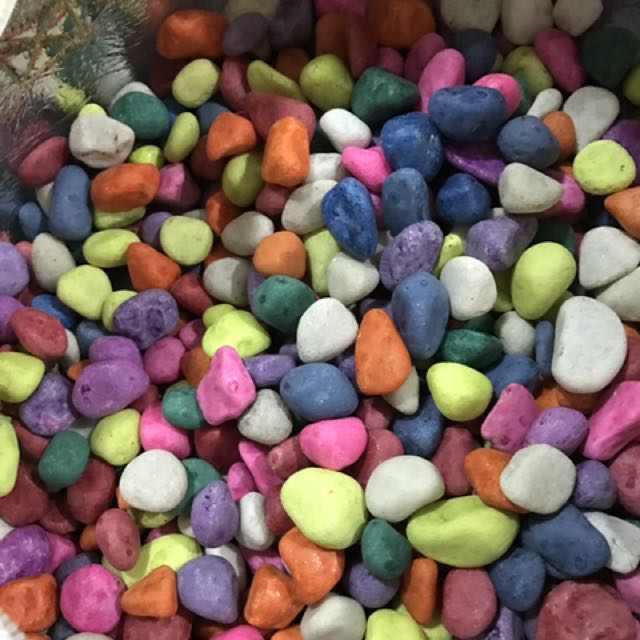
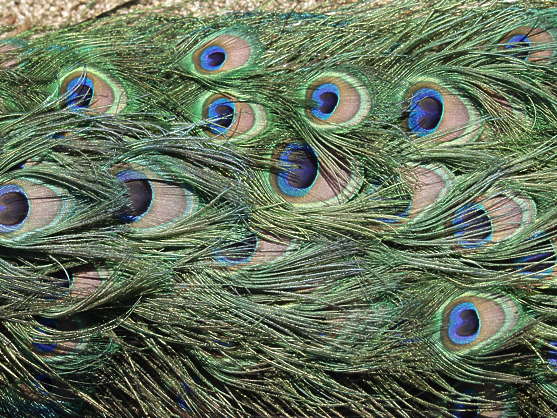
| Pick Textures USE THESE on the creature you create above |
|||||
colourful pebbles
|
a durian fruit |
peacock
|
|||
 |
 |
 |
|||
As usual
- add your description
- and your layers
- and your URL
Subscribe to:
Posts (Atom)
noSketchUp Lesson 6 - LOGO
noSketchUp Lesson 6 - LOGO - no use of sketchup!- In this exercise you need to: 1. (PNG) Draw a Design -or- Create a LOGO -or- m...

-
 Photoshop Morphing - CrocoFrog frog-crocodile tutorial 1: Do as your are told in the tutorial - learn something new make sure...
 -
 LEARN to CODE 10 hours of CODING Choose an online programming site Recommendations 1. https://w...
 -
 Sketchup -LESSON 3 --3D Printer Web Browser Version DO not delete the person! Sketchup Tutorial LESSON 3:...