Tuesday, February 25, 2020

PHOTOSHOP - Morphed and textured - extension project

PHOTOSHOP - Morphed and textured
- extension project -


Pick Real world items:

Change all the parts around - Morphing

  •  you may pick more than one of each
a vegetable
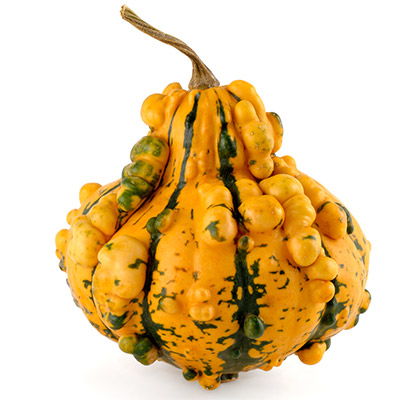
ex: gourd
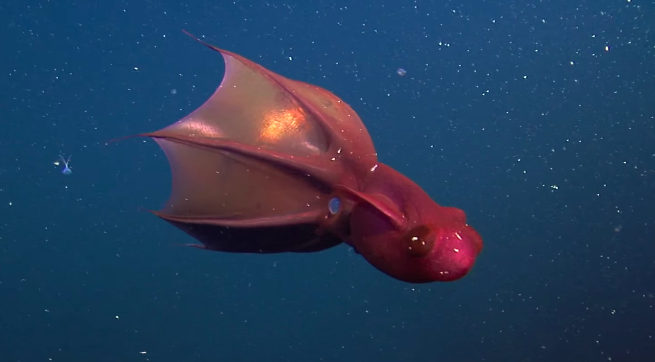
an underwater creature 
ex: vampire squid
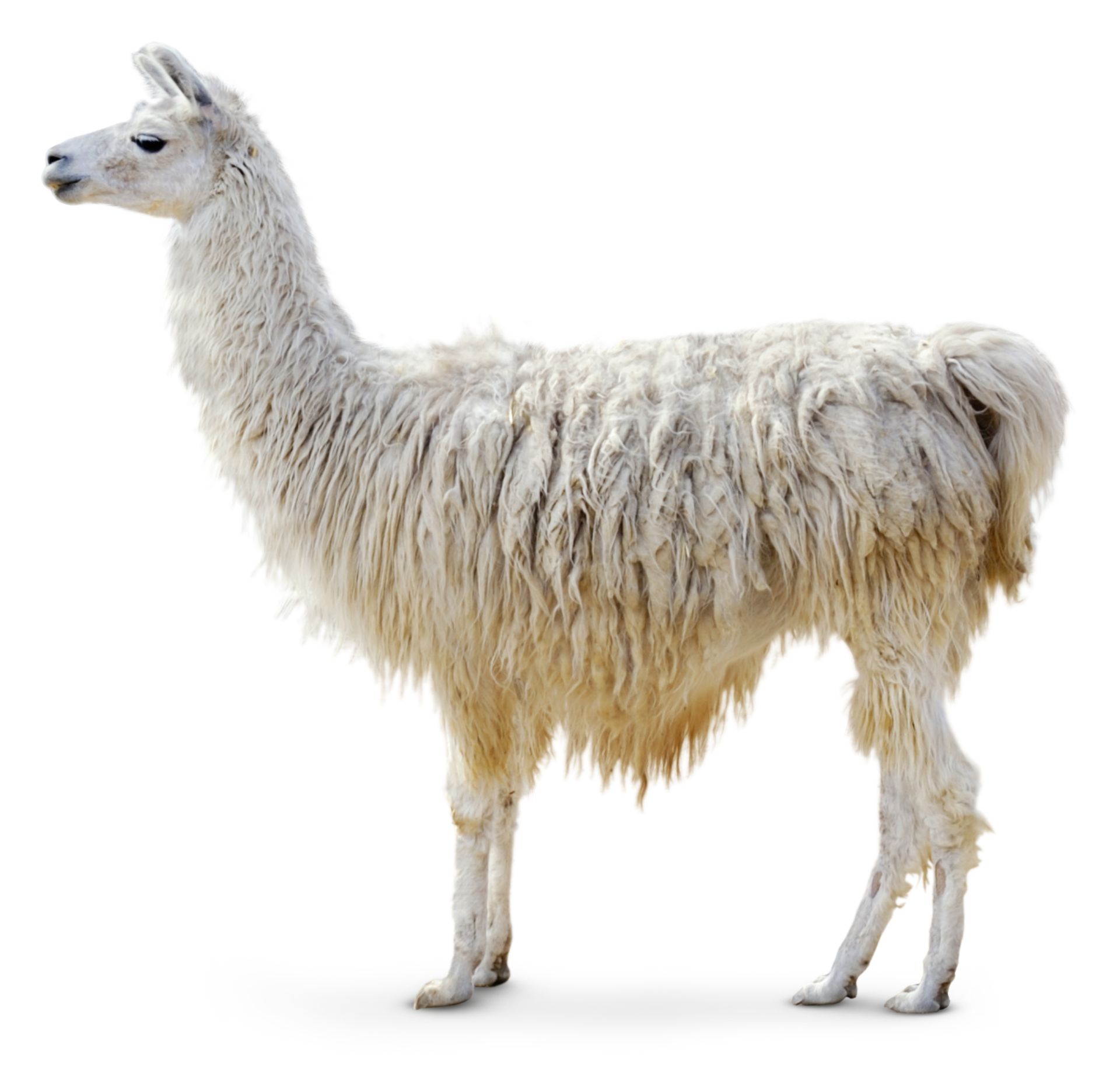
a south American animal 
ex: llama
Image result for gourd
Image result for llama
Pick Textures
USE THESE on the creature you create above
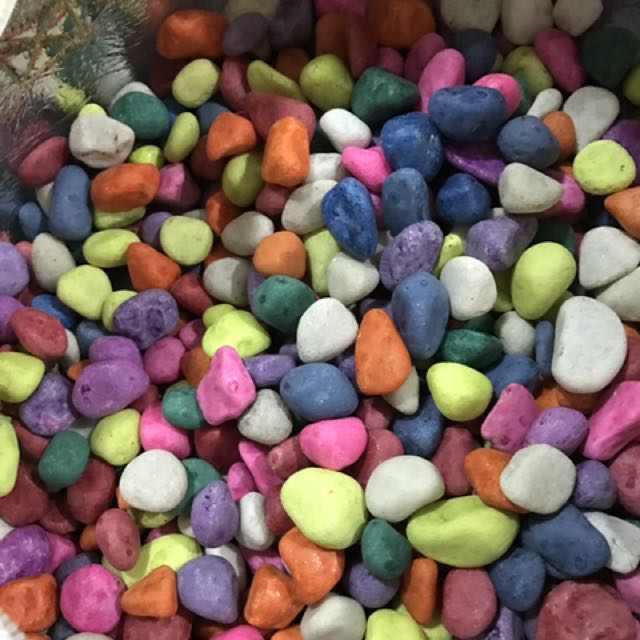
colourful pebbles
a durian fruit
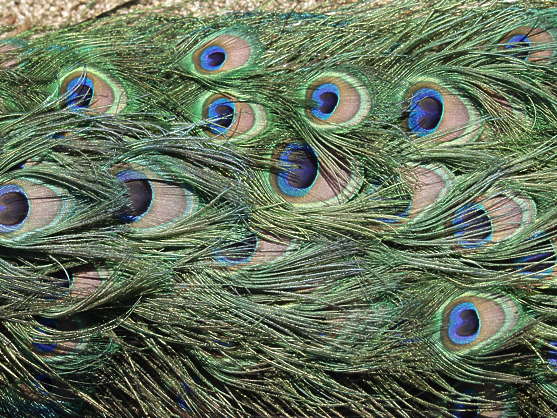
peacock
Image result for colourful pebbles
Image result for spiky fruit
Image result for animal texture


As usual
  • add your description 
  • and your layers
  • and your URL


Tuesday, February 18, 2020

Photoshop - Animal Skin Swap (x2 plus 1)


Photoshop - Animal Skin Swap

Rhino and Leopard


Photoshop - Animal Skin Swap


Swap Animal Skin using Photoshop 
Part 1


Swap Animal Skin using Photoshop 
Part 2


Swap Animal Skin using Photoshop 
Part 3


Swap Animal Skin using Photoshop 
Part 4


Part 1: Select a Rhino and a Leopard
that basically have the same posture.


Part 2: Open the Rhino -mask it out
then "place embedded" the leopard.
-Mask it out
Use opacity on the leopard to
approximately size the two animals equally.
Try to match body parts.

Part 3: Choose Filter -Liquify when on the Leopard layer.
Make sure to checkbox Show Backdrop. Then USE: drop-down to Rhino.
Adjust the opacity to see both ~50%.
Warp the leopard skin to match the rhino as best you can.
Parts that stick out too much will be removed later. Click OK  - it will look odd.
Part 4: CTRL click the Rhino MASK-
then paint -black- on the Leopard MASK.
 - Choose SHIIFT-ALT-I then paint
-White- around the Leopard to remove
erroneous parts.
CTRL-D to unhighlight things...
On the Leaopard layer
- choose blending option - 'multiply'
- Add a new Adjustment Layer - Brightness/contrast
- adjust as necessary
 to make it all look great.
If any parts of the RHINO are missing leopard skin...
CTRL the Rhino Mask -
Create a new clone layer at the very top -
 clone stamp some leopard skin spots onto the forgotten parts.
Fix the horns - if necessary

BACKGROUND
Highlight layers - duplicate - merge
hide originals - select-mask -
get new background -
alter new background with
and adjustment layer
add blog-address - warp-emboss


  • Do AGAIN - Fruit to Car or Animal to Fruit or Animal to Car

  • Do YOUR OWN TUTORIAL


Monday, February 10, 2020

Photoshop Morphing - YOUR OWN tutorial


Photoshop Morphing - YOUR OWN tutorial


Use the tutorial you posted
If it is the same as the Croc-Frog - go find a different tutorial

  1. Do the tutorial exactly as they describe
  2. Add more to the tutorial - just do not skip any
  3. ALWAYS - change the final background
  4. ALWAYS - add your watermark
  5. Display the original images
  6. Display what the final product should look like (their version)
  7. Display your version of the final product
  8. Display your LAYERS
  9. Write a tutorial  - how you created it


<div style="background-image: url('https://dl.dropbox.com/s/hlswz8war88nlx5/pencils.jpg');">

</div>

Friday, February 7, 2020

Photoshop Morphing - CassoGirafurtle

Photoshop Morphing
CassoGirafurtle

Do these animals but...
USE your own images
Make sure to show the original images

CassoGirafurtle
cassowary
giraffe
matamata turtle
Make sure your layers show:
  • Masking
  • Clone tool
  • Dodge
  • Burn
  • adjustment layer
  • Change final background
  • your watermark
  • PLUS
  • filters, layer styles
Write a tutorial:
  • explain how you created this monster. 
  • Attention to details.


Thursday, February 6, 2020

Photoshop Morphing - CrocoFrog

Photoshop Morphing - CrocoFrog


1: Do as your are told in the tutorial - learn something new 


  • make sure to add your BLOG ADDRESS with the text tool 
 (watermark it as your own - also worth marks) 
  • EXPORT as a PNG file and post to your blog 
  • special attention to NAMING LAYERS
  • change the background
  • post screenshot of your LAYERS 
  • Explain how you made it


CrocoFrog
Layers - NOTE - mask layers - new background - hidden originals - watermark
original frog
original crocodile
  •  Explain - in detail - how it was made
  • I started with a layer mask on the croc to cut ot the background - refined it with the paint brush (using black)
  • I then cloned away the eye and added the frog neck to the croc
  • Create an adjustment layer to colour balance the croc head to match the frog body - but erase away the greened mouth and teeth - on the adjustable layer
  • bright areas of the frog with the DODGE tool
  • burn in extra shadow on the frog layer with the BURN tool
  • I duplicated all 3 layers - hid the originals - then merged the copies (merge visible) - rename crocofrog
  • Select the crocofrog - selection tool then mask it
  • add a new background layer under the crocofrog layer - ctrl-click new layer button
  • insert or copy paste in the new background layer
  • adjusted the crocofrog size as necessary
  • added watermark


Wednesday, February 5, 2020

TWO Tutorial POST

Tutorial POST

FIND 2 tutorials

  1st tutorial - hybrid/ morphing two animals

  2nd tutorial - skin/texture changing


create a table for each tutorial


Title of tutorial
URL to website/video
 MUST BE A LINK!
    Embed the video

for example:


TITLE: 
Photoshop: Morphing Animals and more - Tutorial


URL: 

VIDEO:


Gradient Background
<DIV style="background: linear-gradient(to bottom, #cc00ff 0%, #ff0000 100%);">

</DIV>

Wednesday, January 29, 2020

PS Frame Animation

PS Frame Animation

Open Photoshop
NEW - 300x300
Transparent

Add Letter G - size 300
Duplicate layer 3 times to get 4 layers


Window Time line. - select frame animation
Chose 'TINY' menu - select make frames from layers

go to each layer - manipulate it - colour -  transform

make sure the last frame transitions to the first frame nicely

add watermark


1. G R A D E - each letter separately



G - colour change
R - Rock left then right - colour change
A - full rotate - colour and font change
D - smaller return - larger return - font - colour - warp text
E - Colour, font -rasterize then FILTERS- and LAYER EFFECTS (5 changes to each E)


2. Predicted - spell it out slowly then reverse and fade away!

 P - Pr - Pre - Pred   etc 
- colour blinking
NOTE: to FLIP multiple layers - high light the layers - choose LAYER - Arrange - reverse

-add water mark


3. Your First Name - first name - do something great
4. Your Water mark - do something greater.
5. CREATE YOUR MARK -a letter - two numbers - a percent sign

PLACE everything in a 5x5 table try this    style="width: 90%;"
add colours, border, border colour, 
row 1 SPAN all 5 - Predicted goes here
row 2 G R A D E
row 3 Letter blank cell NUMBER NUMBER %
row 4 SPAN all 5 - first name
row 5 SPAN all 5 - water mark


<div style="background: lightpink;">
</div>

noSketchUp Lesson 6 - LOGO

noSketchUp Lesson 6 - LOGO - no use of sketchup!- In this exercise you need to: 1. (PNG) Draw a Design -or- Create a LOGO -or- m...