Notes from the following VIDEO: He shows you how to download - you do not need to. I worked from the web version. It works well. Chrome may crash "Aw Snap" - if so switch to Firefox. We will work in feet and inches just like he does. He then goes on about tool bars - in the online line version you get what they give you - so you may have to hunt a little to find what he using.
He also talks about how the program works - listen to it. LEARN: Select first - choose tool - do the work. LEARN: Think about position and dimension. Do not delete the person! (Yet). Just move him or her out of the way.
NOTE!the ctrl switches the rectangle tool between center focus and corner focus
3 projects you can do because of Tutorial Lesson 1: 1. Do what he asks at the end of his video: It will look like this - add your own colour and your name ...you will notice Helen is in the image to.
2 Create - this tile pattern
in an area 12' x 12'
make sure your name is in the design paint in some texture or colours
post [use snipping tool] the image with the 'person' in it
3. http://drawingincode.com/ The Basic Cityscape Flappy Square
looks a lot like Actionscript used by Adobe Animate- I like it.
How will you be marked?
Each hour - for 10 hours- you will make a BLOG post of what you did that hour. This will include screen shots. You will also write about what you learnt that hour. Give examples. e.g. How to do something, a new piece of code, how difficult something was. Then you will indicate what you will be doing the next hour. Add a link to the exercise. CODE for about 45 minutes then finish up by posting for the last 15 minutes. It is best to code and blog at the same time. This way you can capture images, gifs and thoughts as you work. Use these titles: What I DID this hour What specific things I LEARNT What I will do next hour ...each hour is a separate post... example - html
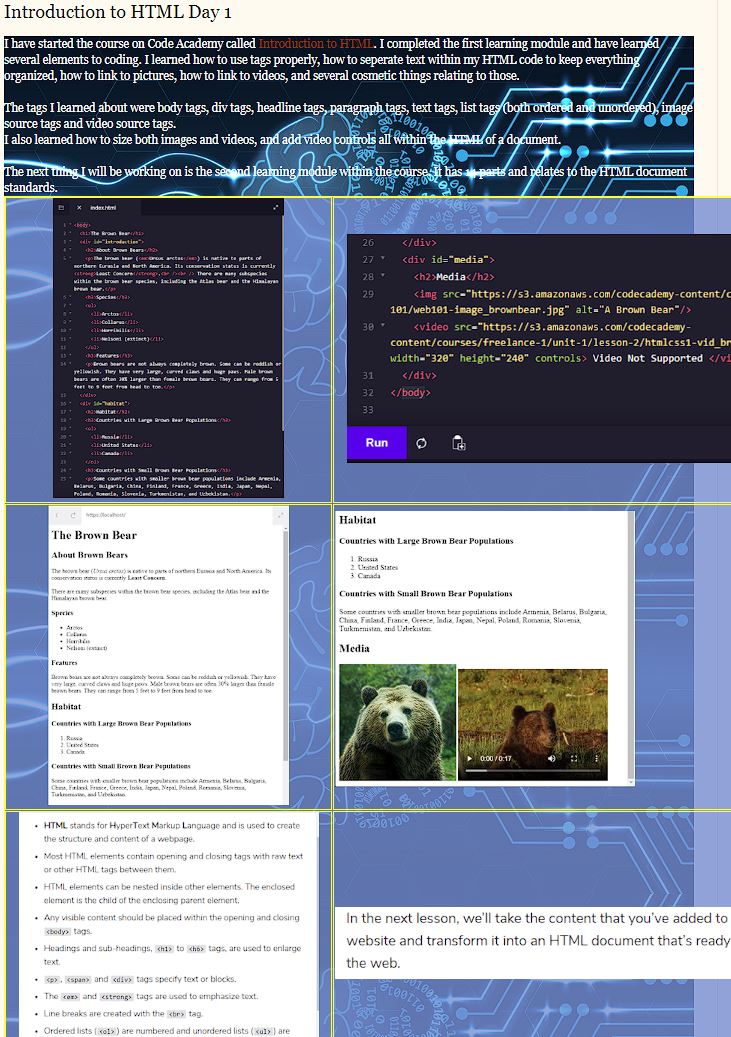
example post- html
Draw and animation example post
opaque background in the table! uses RGB colors
the .8 is the opaqueness value between 0 and 1-where 0 is invisible and 1 is a solid color
<table border="1" bordercolor="yellow" style="background-color: rgba(111, 144, 211, .8);" >
background-image - get link to image off the internet
<div style="background-image: url('https://images.pexels.com/photos/951240/pexels-photo-951240.jpeg');">
</div>
6 people have joined Microsoft Team for Block B and
4 for Block D
Please check your email and take a moment to join. Should you not join then at least look here for instructions and I will look to your blog for results...just like before. On Monday, we will most likely start coding. I would like to use TEAMS for any sort of communication you may require regarding the assignments. ZOOM is not FOIPPA compliant so you are not allowed to use it.
As it stands we are not authorized to hand out work. So, for now, try logging onto your Office365 account using your langleyschools.ca email address. from there choose TEAMS I will send out an email with the code required to get into the correct 'TEAM'. Once everyone is there I am thinking of doing something graphical. I realized no one has Photoshop so it may be with an online drawing tool...there are many.